Contents 

FS Force


Activation


The activation wizard is located on the last page of the Profile Manager.
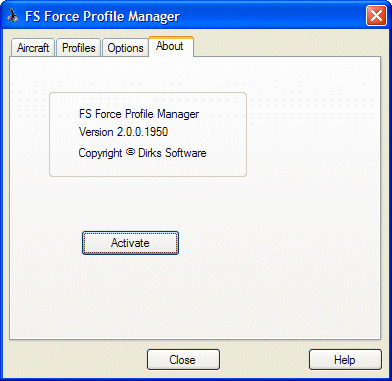


Clicking on the Activate button brings you to the first screen.


Choose the first option, "Regular Program Activation".  The second option is used if you are completing the Web activation method.


Next you will see a screen asking for your registration key, which you should enter.


After clicking Next, you will see the following screen.


If your computer has a direct connection to the internet, choose the first option.  Otherwise choose the second option, which involves using Web Activation.


WEB ACTIVATION - YOUR COMPUTER HAS AN INTERNET CONNECTION


The following steps apply if you want to use Web Activation, and your computer has a connection to the internet.  If your computer does NOT have a connection to the internet, see the section below.

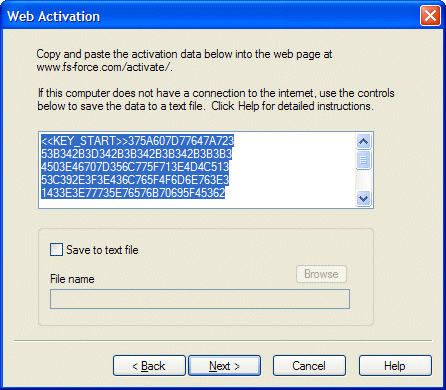
  • First you will see the following screen:


  • Make sure all the data in the text box is selected, then press Ctrl-C to copy it into the clipboard.  Or right-click in the text box and select Copy.
  • Leave the Activation Wizard running, and start up your web browser
  • Navigate to http://www.fs-force.com/activate/


  • Click in the text box and press Ctrl-V to paste the data.
  • Click Submit
  • This will take you to the next screen, where some return data will be displayed.  
  • Select the return data, and press Ctrl-C to copy it to the clipboard.
  • Switch back to the Activation Wizard and click Next.
  • Paste the return data into the edit box (Ctrl-V) and click Next

WEB ACTIVATION - YOUR COMPUTER DOES NOT HAVE INTERNET


The following steps apply if you want to use Web Activation, but your computer does not have a connection to the internet. 


Summary

This method has more steps.  Here are the quick instructions.  More detailed instructions can be found right after. 

  • save the activation data to a floppy
  • take it to a computer that has in internet connection
  • paste the data into www.fs-force.com/activate/
  • save the returned data that is displayed back onto a floppy
  • bring the floppy back to your computer
  • load the data on the floppy into "Web Activation, Step 2"


If the brief instructions don't have enough detail for you, follow these more thorough instructions:

  • At the screen that displays your activation data, click the check box that says "Save to text file".  
  • Enter a file and path.  You should save it to a floppy disk, so a good example would be "A:\regdata.txt".  You can also use the Browse button if you prefer.
  • Click the Next button, then close the activation wizard.
  • Take the floppy disk to a computer that has an internet connection.
  • Put the disk in the floppy drive, then open the My Computer icon
  • Navigate to your floppy drive and double-click on the text file that contains your activation data.
  • Select all the data with your mouse, then press Ctrl-C to copy it to the clipboard.
  • Start up a web browser, and navigate to http://www.fs-force.com/activate/
  • Click in the text box and press Ctrl-V to paste the data.
  • Click Submit
  • This will take you to the next screen, where some return data will be displayed.  
  • Select File / Save As from the menu to save this web page as a text file on your floppy.    
  • Where it says "Save as type", change it to Text File.  
  • Under "Save In" specify your floppy drive.
  • Specify a name, then click save.
  • Bring this floppy disk back to the computer running FS Force and insert it into the floppy drive.
  • Start Profile Manager
  • Start the Activation Wizard
  • At the first screen, select "Web Activation, Step 2"
  • Click Next twice, then click the "Load From Disk" button.
  • Navigate to your floppy drive, and select the file that contains the return data you saved at the other computer.
  • Click Next


  Contents 

FS Force